


Modern dental practices rely on technology to manage patient records, digital X-rays, appointment scheduling, billing, and clinical workflows. Therefore, protecting computer systems is essential for maintaining patient privacy and ensuring daily operations run smoothly. One important security feature is Trusted Platform Module (TPM) 2.0.
But what exactly is TPM 2.0, and why should dental practices care about it? In this guide, MVP IT explains how TPM 2.0 for dental practice computers supports device security, protects sensitive information, and helps dental offices maintain reliable IT systems.
What Is TPM 2.0?
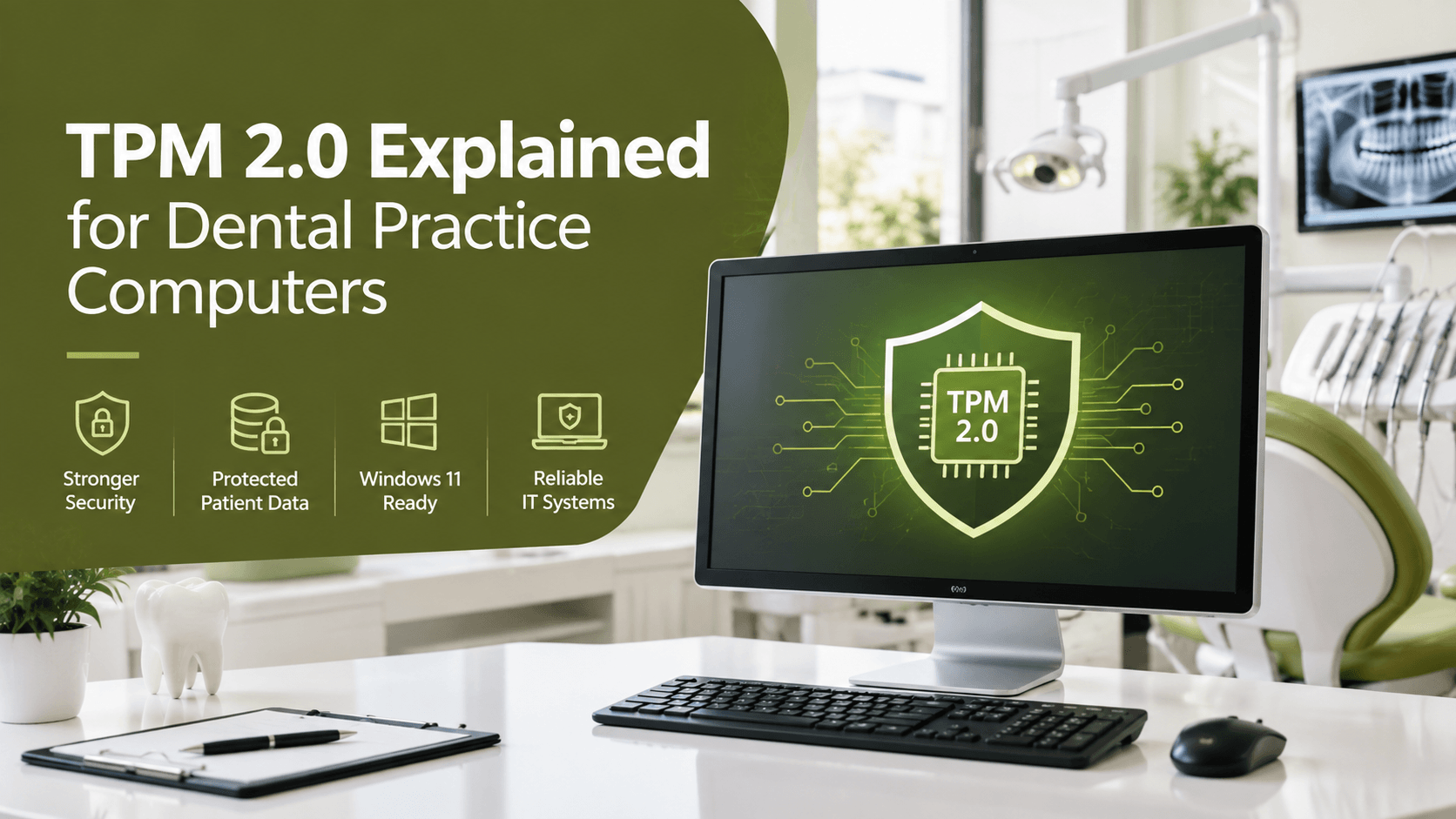
Trusted Platform Module (TPM) 2.0 is a security technology built into many modern computers. It can be implemented as a dedicated hardware chip or through firmware-based technology supported by the device.
Essentially, TPM 2.0 provides a secure environment for storing cryptographic keys, digital certificates, and other security-related information. As a result, it helps protect a computer against certain types of unauthorized access and tampering.
Furthermore, TPM 2.0 supports security features in Windows 11, including BitLocker drive encryption and Windows Hello. These technologies help businesses protect devices and manage secure access.
For dental practices, this means an additional layer of protection for computers that handle confidential patient information.
Why Is TPM 2.0 Important for Dental Practice Computers?
Dental offices process sensitive information every day. For example, patient management software, digital imaging systems, and billing applications may contain personal details and confidential records.
Consequently, a security incident can disrupt appointments, affect productivity, and create privacy concerns. TPM 2.0 helps strengthen the underlying security of compatible computers.
1. Protecting Patient Information
Patient confidentiality is a priority for every dental practice. TPM 2.0 can support encryption technologies that help protect information stored on computers.
For instance, when BitLocker is configured appropriately, TPM 2.0 can help protect encryption keys and support secure access to an encrypted drive. Therefore, if a computer or workstation is lost or stolen, encryption can make stored information more difficult to access without authorization.
However, TPM 2.0 alone does not encrypt every file or guarantee complete data protection. Proper security configuration remains essential.
2. Supporting Windows 11 Security
Microsoft requires TPM 2.0 for officially supported Windows 11 installations on compatible PCs. Consequently, dental practices planning to upgrade their computers should verify that their devices meet the operating system’s hardware requirements.
In addition, Windows 11 includes modern security features that work alongside TPM 2.0. Upgrading compatible systems can help dental offices maintain a more current computing environment.
Nevertheless, practices should check their dental software, imaging equipment, and peripheral compatibility before upgrading.
3. Strengthening Device Integrity
TPM 2.0 can support secure boot and system integrity checks by helping protect the information used to verify the startup process.
As a result, compatible security configurations can make certain forms of unauthorized system modification more difficult to conceal. This is particularly valuable for workstations connected to dental imaging equipment and practice management systems.
How Does TPM 2.0 Work?
TPM 2.0 works with the computer’s operating system and security applications. Rather than replacing antivirus software or a firewall, it provides hardware-backed security capabilities that other technologies can use.
Here is how it helps:
- Secure key storage: It protects cryptographic keys against certain extraction and misuse attempts.
- Encryption support: It can help protect keys used by technologies such as BitLocker.
- System integrity: It can store measurements of startup components to support verification of the boot process.
- Authentication: It supports security mechanisms used by compatible applications and operating systems.
Together, these capabilities contribute to a stronger security foundation for dental practice computers.
How Can Dental Practices Check TPM 2.0?
Dental office managers or IT professionals can quickly check whether a Windows computer supports TPM 2.0.
First, press Windows + R on the keyboard. Next, type tpm.msc and press Enter.
A TPM management window will appear. If TPM is available and enabled, the window should display its status and specification version. Ideally, the specification version should show 2.0.
If the system reports that a compatible TPM cannot be found, the feature may be disabled in the computer’s UEFI or BIOS settings, or the device may not support it.
Before changing firmware settings, consult a qualified IT professional to avoid disrupting existing security configurations.
How MVP IT Helps Dental Practices Stay Secure
Managing dental technology requires more than purchasing modern computers. Practices also need reliable support, appropriate security configurations, software compatibility checks, and proactive maintenance.
MVP IT helps businesses in Calgary and Edmonton with IT support and technology management. For dental practices, professional IT assistance can help assess computer readiness, review security configurations, plan hardware upgrades, and reduce avoidable technology disruptions.
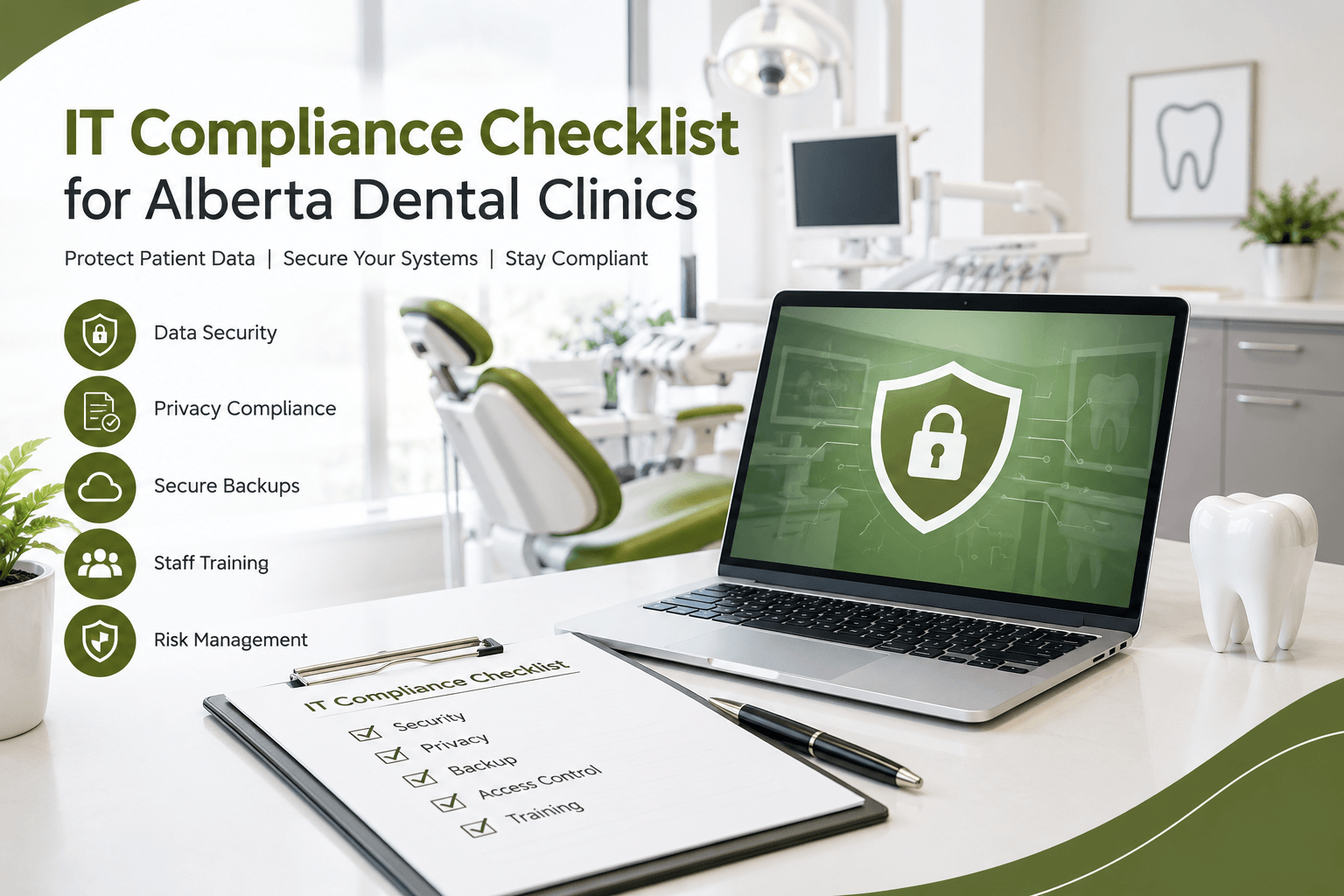
Moreover, a comprehensive security strategy should include regular software updates, endpoint protection, multi-factor authentication, secure backups, access controls, and staff awareness training. TPM 2.0 is one part of this broader approach.
By reviewing these elements together, dental practices can build a more dependable technology environment.
Frequently Asked Questions
1. Do dental practice computers need TPM 2.0?
TPM 2.0 is required for officially supported Windows 11 installations on compatible PCs. Dental practices should check their hardware and software requirements before upgrading.
2. Does TPM 2.0 protect patient records by itself?
No. TPM 2.0 supports security features, but it does not automatically protect every record. Encryption, access controls, backups, and other safeguards are also necessary.
3. Can an older dental computer support TPM 2.0?
Some older computers include TPM 2.0 that is disabled in firmware. Others may lack compatible hardware. An IT assessment can determine the available options.
4. Is TPM 2.0 the same as antivirus software?
No. TPM 2.0 provides security-related hardware capabilities, whereas antivirus software helps detect and prevent malicious activity. Both can contribute to a layered security strategy.
5. Can MVP IT help prepare dental computers for Windows 11?
MVP IT can help assess IT requirements and plan appropriate technology upgrades. Contact the team to discuss your practice’s computer security and support needs.
Conclusion: Secure Your Dental Practice with MVP IT
TPM 2.0 is an important component of modern computer security. By supporting encryption, secure key storage, and system integrity features, it helps dental practices establish a stronger foundation for protecting sensitive information.
However, effective security depends on more than one technology. Dental offices should also maintain updated systems, reliable backups, strong authentication, and compatible clinical software.
Ready to improve your dental practice’s IT security? Contact MVP IT for professional IT support and technology guidance in Calgary and Edmonton.
MVP IT
- Calgary: 3850 19 St NE, Bay 5, Calgary, AB T2E 6V2
- Edmonton: 14065 Victoria Trail NW, #211, Edmonton, AB T5Y 2B6
- Phone: (587) 585-6871
Contact MVP IT today to discuss your dental office’s IT needs and build a more secure, reliable computing environment.