


Running a successful dental practice requires reliable technology. From managing patient records and scheduling appointments to processing payments and accessing digital X-rays, Dentrix helps dental teams handle essential daily operations. However, outdated or underpowered computers can slow down workflows, frustrate staff, and increase the risk of unexpected downtime.
Therefore, choosing the best computer specifications for Dentrix in 2026 is an important investment for any dental office. The right hardware improves performance, supports connected dental devices, and helps your team work efficiently. At MVP IT, we understand the technology needs of dental practices and help businesses in Calgary and Edmonton maintain reliable, secure IT environments.
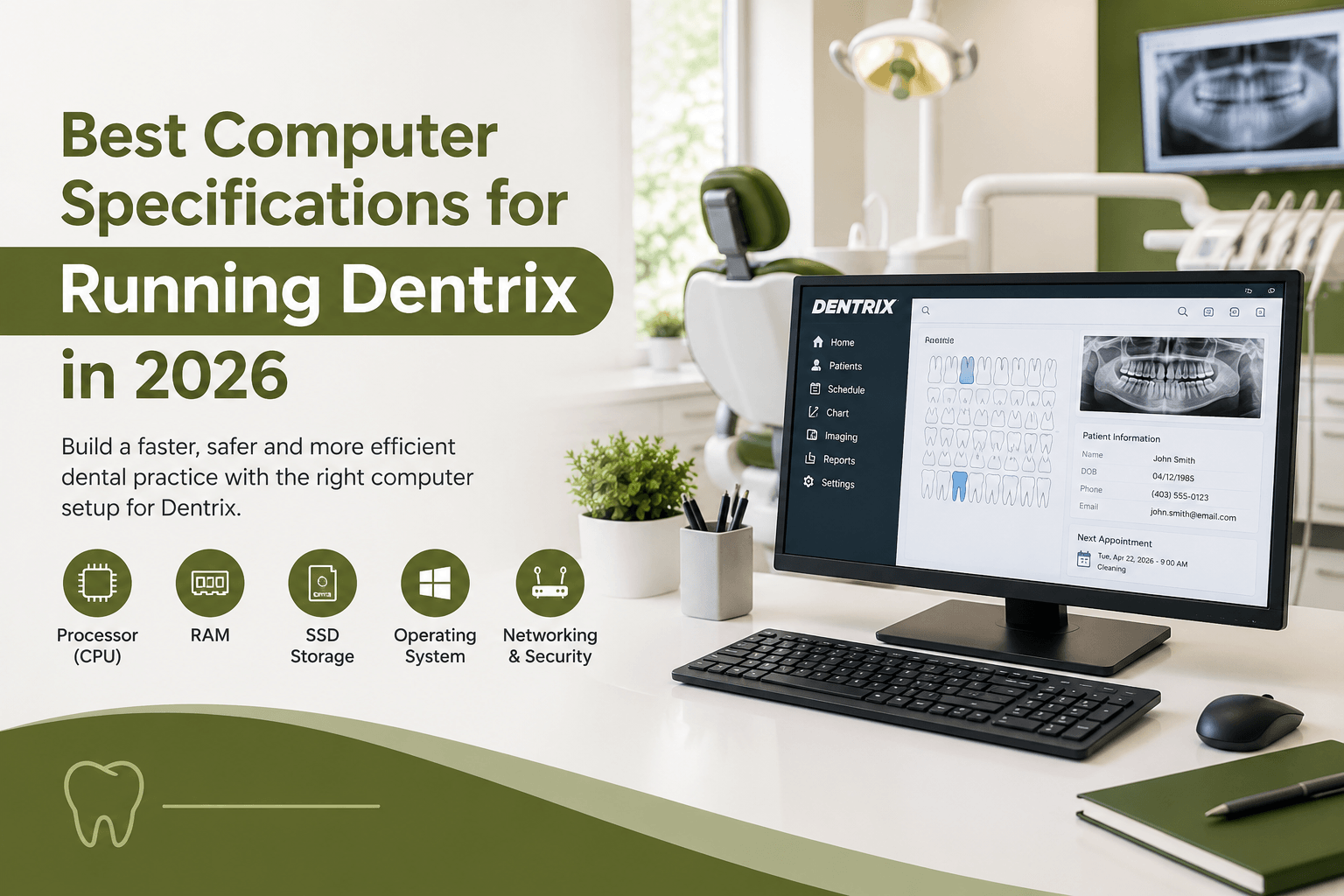
1. Choose a Powerful Processor (CPU)
The processor determines how efficiently a computer handles applications and multiple tasks. Although basic Dentrix functions may run on less powerful hardware, modern dental offices often use several applications simultaneously.
For optimal performance, consider these specifications:
- Recommended processor: Intel Core i5 or AMD Ryzen 5, or better.
- For demanding workloads: Intel Core i7 or AMD Ryzen 7.
- Architecture: A compatible 64-bit processor.
Additionally, a modern processor helps staff switch between Dentrix, imaging software, web browsers, and billing applications without unnecessary delays.
2. Install Sufficient RAM
Random access memory (RAM) allows your computer to manage active applications. When memory is insufficient, computers may become sluggish, particularly when several programs are running together.
For most modern dental office workstations, consider:
- 16 GB RAM: A practical starting point for everyday dental office tasks.
- 32 GB RAM: Recommended for demanding imaging workflows and heavy multitasking.
Consequently, investing in adequate memory can improve responsiveness and provide more room for future software requirements. However, always verify compatibility with your Dentrix version and connected applications.
3. Use a Fast Solid-State Drive (SSD)
Storage affects startup times, application loading, and general system responsiveness. Fortunately, solid-state drives offer considerably faster access to data than traditional mechanical hard drives.
For a new workstation, choose a 512 GB SSD at minimum, with a 1 TB SSD providing additional room for applications and local files. Meanwhile, dental practices with extensive imaging requirements should assess their actual storage needs before purchasing equipment.
Importantly, an SSD does not replace a proper backup system. Regular, verified backups are essential for protecting patient records and supporting business continuity.
4. Select a Supported Windows Operating System
Operating system compatibility is essential when configuring a Dentrix workstation. An unsupported Windows version can create security risks and interfere with software updates or technical support.
In 2026, prioritize a supported, fully updated version of Windows 11, provided your specific Dentrix release and connected dental devices are compatible. Furthermore, check compatibility with printers, scanners, imaging systems, and other clinical equipment before upgrading.
Because requirements can vary by release, consult the official Dentrix resources and system requirements before purchasing or replacing computers.
5. Invest in Reliable Networking
Dentrix performance depends on more than individual workstation specifications. In a multi-computer dental practice, network reliability also plays a critical role.
For better connectivity, consider:
- Gigabit Ethernet connections for workstations and servers.
- Business-grade network switches and routers.
- Reliable Wi-Fi for supported mobile devices.
- Proper network configuration and monitoring.
Whenever possible, use wired Ethernet for fixed workstations. This helps provide consistent connectivity and reduces interruptions caused by wireless interference.
6. Prioritize Security and Data Protection
Dental practices handle confidential patient information, making cybersecurity a priority. Therefore, computers should include supported operating systems, endpoint protection, appropriate access controls, and regular security updates.
In addition, implement automated backups with protected off-site or cloud copies. Test recovery procedures regularly so your team knows how to restore essential systems following hardware failure or a cyberattack.
MVP IT can help dental practices evaluate their IT infrastructure, strengthen security, and reduce avoidable downtime.
7. Choose the Right Monitor and Accessories
A comfortable workstation also improves daily productivity. Consider a Full HD monitor with an adjustable stand, suitable screen size, and accurate image display.
Moreover, verify that your computer supports the required USB connections and peripherals. Dental practices may need compatible printers, scanners, intraoral cameras, and imaging equipment.
Before purchasing new hardware, confirm that every essential device works with your intended Dentrix configuration.
Frequently Asked Questions
What are the best computer specifications for Dentrix in 2026?
A modern Intel Core i5 or AMD Ryzen 5 processor, 16 GB RAM, a 512 GB SSD, and a compatible, supported Windows operating system are sensible starting points. However, confirm your Dentrix version’s official requirements.
Is 8 GB RAM enough to run Dentrix?
It may be sufficient for some basic configurations, but 16 GB is a more practical recommendation for modern workstations running multiple applications.
Does Dentrix require a dedicated graphics card?
Not necessarily. Standard practice management tasks may work with integrated graphics. However, advanced imaging or specialized dental applications may require additional graphics capabilities.
Should a dental practice use an SSD or HDD?
An SSD is generally preferable for workstation performance. Nevertheless, storage capacity, backup requirements, and server configuration should be assessed separately.
Can MVP IT help upgrade dental office computers?
Yes. MVP IT can help assess hardware, network performance, cybersecurity, backups, and other dental IT needs in Calgary and Edmonton.
Conclusion: Prepare Your Dental Practice for 2026
Choosing the right computer hardware helps dental practices run Dentrix efficiently while supporting dependable patient care. From processor performance and RAM to SSD storage, networking, and cybersecurity, every component contributes to a reliable working environment.
However, the best configuration depends on your Dentrix version, practice size, imaging requirements, and existing infrastructure. That is why professional IT guidance can help you avoid compatibility problems and unnecessary expenses.
Ready to improve your dental office technology? Contact MVP IT at (587) 585-6871 for reliable dental IT services, computer upgrades, network support, and cybersecurity solutions. Visit us at 3850 19 St NE, Bay 5, Calgary, AB T2E 6V2, or 14065 Victoria Trail NW, Suite 211, Edmonton, AB T5Y 2B6, to discuss your practice’s IT needs.